Web Design / JOURNAL
A new website. What happens to your Google traffic?
Planning a website redesign in San Antonio? Learn which pages to keep, how to redirect old URLs, and how to check Google traffic and quote requests after launch.

Before you approve a new homepage, ask your web designer to show you the old page they would be most reluctant to delete. Their answer might surprise you. For a San Antonio contractor, it could be a plain page about replacing a single broken fence post. The owner barely remembers publishing it. A homeowner in Helotes finds it on Google, sees that the company handles small jobs, and requests an estimate. That page earns its keep.
A website redesign gives you the chance to make a better first impression. It also puts decisions about your most productive pages on the table. Someone will decide which services to combine, which photos to replace, what to call each page, and where the quote button goes. If you keep productive pages accessible, a redesign can preserve the search traffic they earn. Moving or removing pages can cause traffic to fluctuate while Google processes the changes. Here’s how to make those decisions with evidence, then check that customers can still find you and reach the right person after launch.
Find the pages you would miss on Monday morning
Start in Google Search Console. Open the Search results performance report, choose a representative period, and view the Pages tab. Export the list. Click into a page that matters to your business and open the Queries tab to see examples of searches that brought it into view. A page called “Custom Gates” might attract homeowners looking specifically for side-yard gates. That distinction belongs in the redesign brief.
Now ask the person who answers your phone a different question. Which jobs do callers mention by name? They might tell you that three people asked whether you can widen an existing gate for a riding mower. Search data tells you what brought people to the site. The person scheduling estimates knows which details convinced them to call. Write down both while the old pages are still available.
Give each important page a row in a simple spreadsheet. Record its current address, the service it describes, how someone reaches you from it, and one detail worth keeping. Include pages you share in estimates, emails, or text messages. A financing page can get little search traffic and still be the link your estimator sends every Friday. Your designer needs to know what would break if that address disappeared.
Decide which pages keep their addresses
A new layout can live at an existing web address. If your fence repair page already has a clear address, earns relevant clicks, and still represents work you want, keep it. You can replace the photos, rewrite the introduction, and move it under a new menu heading without changing the link a past customer saved. Ask for a specific reason every time the redesign proposes a new address for an established page.
Some moves make sense. Suppose your site has one page for leaning fences and another for storm-damaged fences, and your crew handles both through the same repair visit. Look at what customers actually search for and what each page helps them decide. One thorough repair page might serve both groups well. If the first page also attracts people looking for gate realignment, give that question a proper answer on the replacement before retiring the original.
For every address that changes, write down its closest useful destination. A permanent redirect, usually a 301 or 308, takes visitors from the old address to the new one. Someone who opens an old link about storm damage should land where they can still read about storm damage. Ask your developer to send that visitor directly to the final page. Google recommends keeping redirects for at least a year when URLs move. Google’s guide to moving URLs
What if you’ve stopped offering a service altogether? If there’s a genuine replacement, explain the change on the destination page. If you closed a showroom and now visit customers at home, for instance, the old showroom link could lead to a page explaining how to book a visit. When there’s no relevant replacement, let the old address return a proper “page not found” response. A friendly error page with working navigation still gives the visitor somewhere useful to go.
Keep the detail that gets the right customer to call
Read the old page as someone who has never hired you. Where does it explain the size of job you’ll take, the neighborhoods you visit, or what you need for an estimate? Save those answers, including the unglamorous ones. “Send one photo of the leaning section and one of the post at ground level” tells a homeowner exactly how to get started. A full-screen gallery can sit above that instruction as long as a phone user can still find it.
Use the rewrite to correct assumptions, too. If your crew works on residential fences but regularly receives requests for highway fencing, say what types of properties you serve. If you take small repairs only within a defined area, explain that boundary next to the estimate button. Put an accurate service detail in the heading when it helps a reader recognize their job. Read it aloud. It should sound like an answer you’d give across the counter.
Walk through the new site from a local customer’s phone
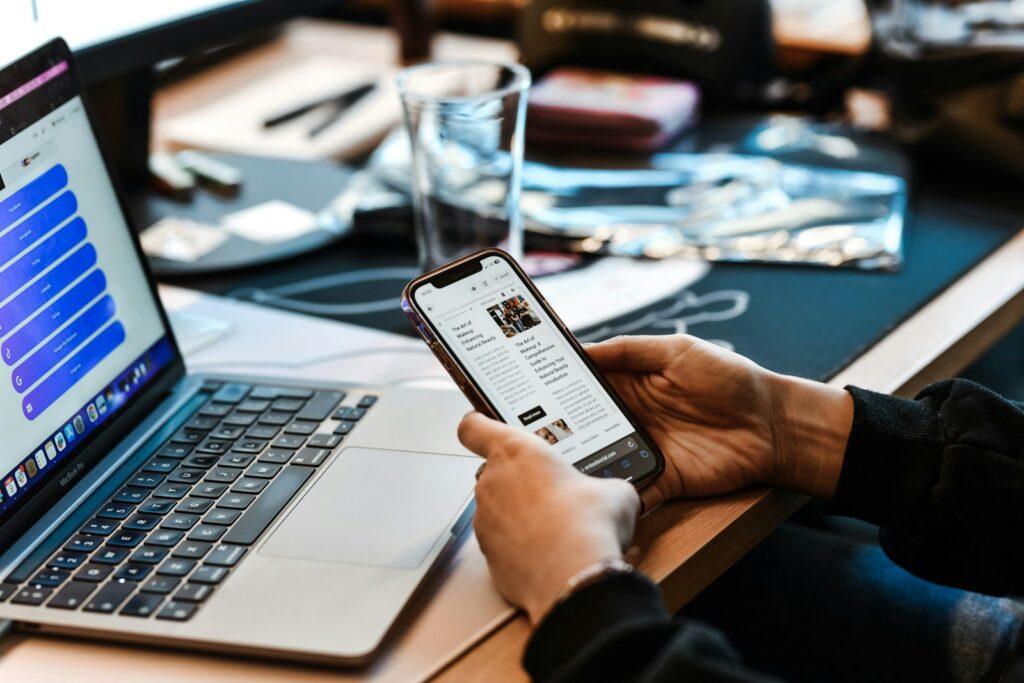
Picture a homeowner in Alamo Ranch who has already seen your truck on their street. They tap your website from Google Maps between errands. They want to know whether you come to their subdivision, whether they can send pictures, and whether someone will need access to the backyard. If the first screen offers only a video and the words “Explore our solutions,” the homeowner has another round of searching to do.
Give that person a short route from recognition to action. A fence repair page could show a real repair near the top, identify the service area in plain language, and offer a button labeled “Request a fence repair estimate.” Just below, explain what happens after the request. If your office reviews photos before arranging a visit, say so. An accurate description of the next step helps someone decide whether to fill out the form now.
Have someone outside the project try this on their own phone. Give them a job to accomplish, start them on a service page, and watch quietly. Where do they pause? Can they tell whether the form went through? One person who misses the mobile menu or mistakes a decorative arrow for a button can reveal something a whole room of people reviewing desktop mockups overlooked.
Test the entire trip from the button to the inbox
Send a clearly labeled test inquiry and ask the employee who handles leads to find it. Open the notification together. Can they see the customer’s requested service and reply to the customer’s address? Does a submitted photo arrive with the message? If a member of the sales team normally assigns the request in a customer system, follow it that far. A cheerful confirmation on the website proves only that the visitor saw a confirmation.
Test a second route, too. Tap the phone link in the mobile header and verify the number it opens. Follow a link from a Google Ads campaign if you run ads. A site can direct organic visitors correctly while an old advertising link still points to a retired estimate form. Record the starting link and destination in your launch notes so the person fixing a problem can reproduce it.
Give Google and your customers the same destination
During development, your team may use a private preview that looks almost identical to the finished site. Ask them to show you the settings for one public service page and one preview page. The public page should be available to search engines. Keep confidential previews behind access controls. For a publicly accessible sample that should stay out of search, your team can use a noindex instruction and allow Google to crawl it to see that instruction. Google’s guidance on noindex
Another setting worth seeing is the canonical address. This is the version of a page you’re indicating Google should treat as the main one. On a finished service page, that address should ordinarily point to its own final public URL. A page can look perfect in a browser while its code points to a staging address. Ask the developer to compare the canonical, the destination in the menu, and the entry in the XML sitemap for the same service. Google’s guide to canonical URLs
Once the site is live, use Search Console’s URL Inspection tool on a few important pages. The live test shows whether Google can currently access a page. The indexed view shows information from Google’s stored version, which may reflect an earlier visit. A difference between the two gives you a reason to check the crawl date before making another change. Google’s URL Inspection guide
Treat launch day like a customer handoff
Choose a window when the person who manages the website and the person who receives leads are both available. Before announcing the redesign, open a handful of old links from the list you made. Use an actual bookmarked address, a link in an old customer email, and the website button on your Google Business Profile. Check where each one lands. Then submit a fresh inquiry on the public site using your phone’s cellular connection.
Keep a dated copy of the old pages and the redirect list somewhere the business owns. Write down who can restore the previous version, who controls the domain, and who receives website errors. If a problem appears after hours, those three details save the next person from tracing permissions while potential customers are trying to reach you. Once the public checks pass, submit the updated sitemap in Search Console and record the launch date beside your baseline.
Remember the links you can hold in your hand. Scan the QR code on a business card, yard sign, or truck decal. If it sends people to an old address, a redirect can keep that printed material useful until your next order.
Read the first month of numbers like a business owner
Start with three figures you can explain to someone at the front desk. How many people clicked through from Google to your important service pages? How many genuine inquiries reached the office? How many were for work you actually want? Save the reporting period and source beside each figure. Separate your internal test requests so a busy week of redesign checks doesn’t look like an increase in customers.
Suppose the repair page still gets about the same number of Google clicks, but requests stop reaching the estimator. Put a real test through the form before rewriting the page. If messages arrive normally but the office reports a run of out-of-area jobs, check the service-area wording and the locations on those inquiries. If one busy page loses most of its search clicks, open its old address, inspect the destination, and compare what the new page says about the service people searched for.
Compare equivalent periods and account for what happened in the business. A week of fence repairs after a storm makes a poor baseline for an ordinary week. A holiday closure can reduce answered calls even when search traffic holds steady. Google also advises that rankings can fluctuate as it processes changed URLs. Keep a record of when you corrected a redirect or restored a missing section so you can interpret the next report.
What to ask before you approve a redesign proposal
Ask each agency to walk you through one page on your current site. Which customer uses it? What would the agency keep? If the address changes, where will an old link go? Who will test the first live inquiry with your office? You’ll learn more from five minutes spent on an actual page than from a promise that the finished website will be “SEO friendly.”
At NXT GEN WEB, the best place to start that conversation is a service you want more of and a page you’re worried about losing. Send us your current website, tell us which part of San Antonio you serve, and share one example of a good inquiry. We can use those details to scope the website design and SEO work around what already brings customers through your door. Get a Quote from NXT GEN WEB
Lead photograph by Carlos Muza on Unsplash.